
Edit Question
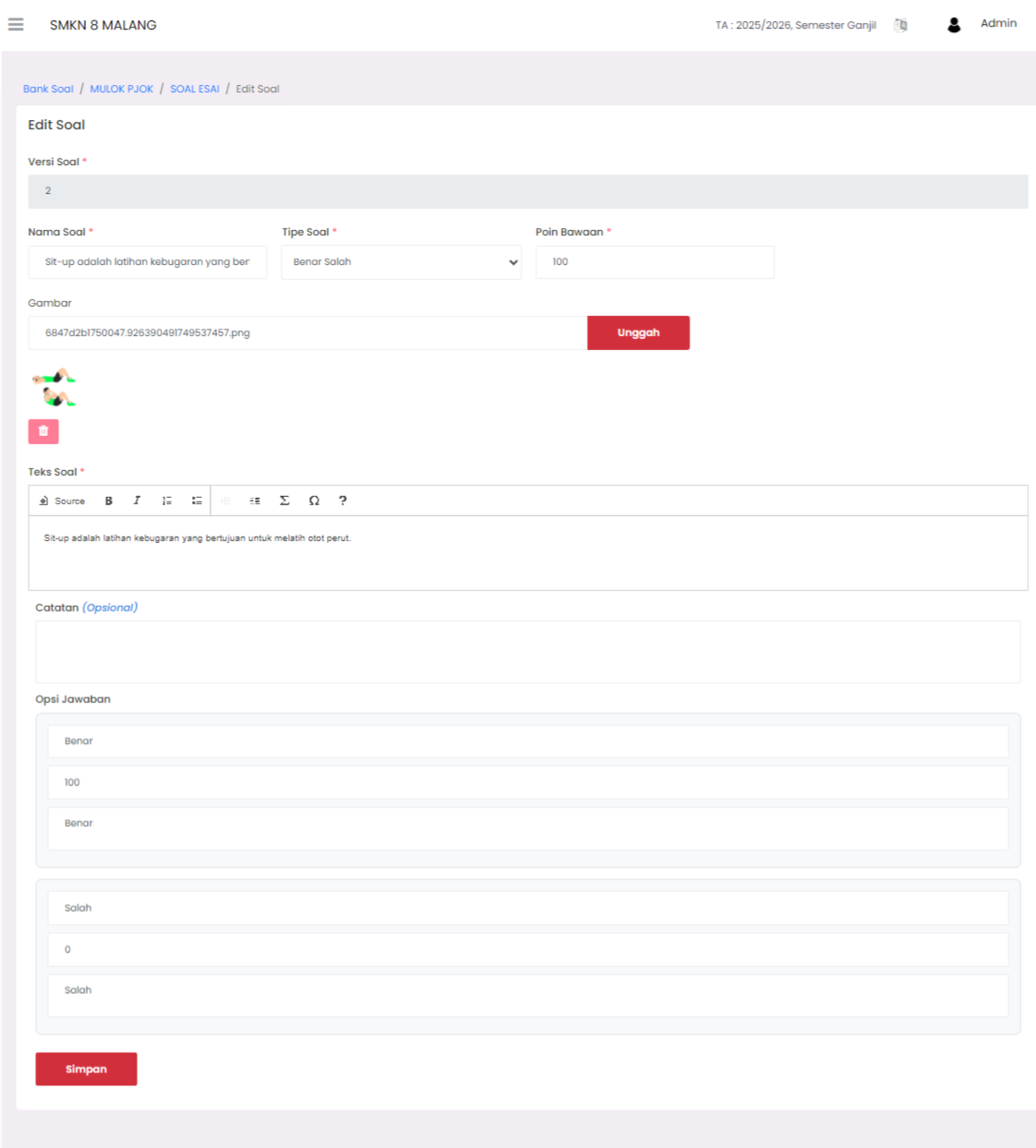
The Edit Question page is used to change the content of questions that have been created in the Question Bank. This feature is important for updating or perfecting exam materials without having to create new questions from scratch.
How to Access
- Navigate to menu: Curriculum > Online Exams > Question Bank.
- Select the subject and question list to edit.
- In the question list, click the action icon (⋮) next to the question.
- Select the Edit option, then this page will open.
Components on Edit Question Page
| Component | Description |
|---|---|
| Question Version | Shows the question revision version. Usually filled automatically. |
| Question Name | Question title for internal identification (does not appear to students). |
| Question Type | Selected question type, such as True-False, Multiple Choice, Numeric, Essay, or Short Answer. |
| Default Points | Default value if students answer correctly. |
| Image | Can add illustrations or supporting images for questions. Click "Upload" to replace old images. |
| Question Text | Main content of the question that will be displayed to students. Can be long or short text. |
| Notes (Optional) | Additional notes for admin/teachers, not displayed to students. |
| Answer Options | Place to set correct/incorrect answers or other choices depending on question type. Each option has points and labels. |
Example Case
For example, you are revising a True-False question like:
"Sit-ups are fitness exercises aimed at training abdominal muscles."
You can:
- Improve sentence wording if unclear.
- Add sit-up movement illustration images.
- Change answer options if there are errors.
- Change question points if the value needs adjustment.
Final Step
After all changes are made, click the Save button to save the edited results.
Need Further Assistance?
If you require additional support, please reach out to us via the eSchool Help Page.