
Edit Online Exam
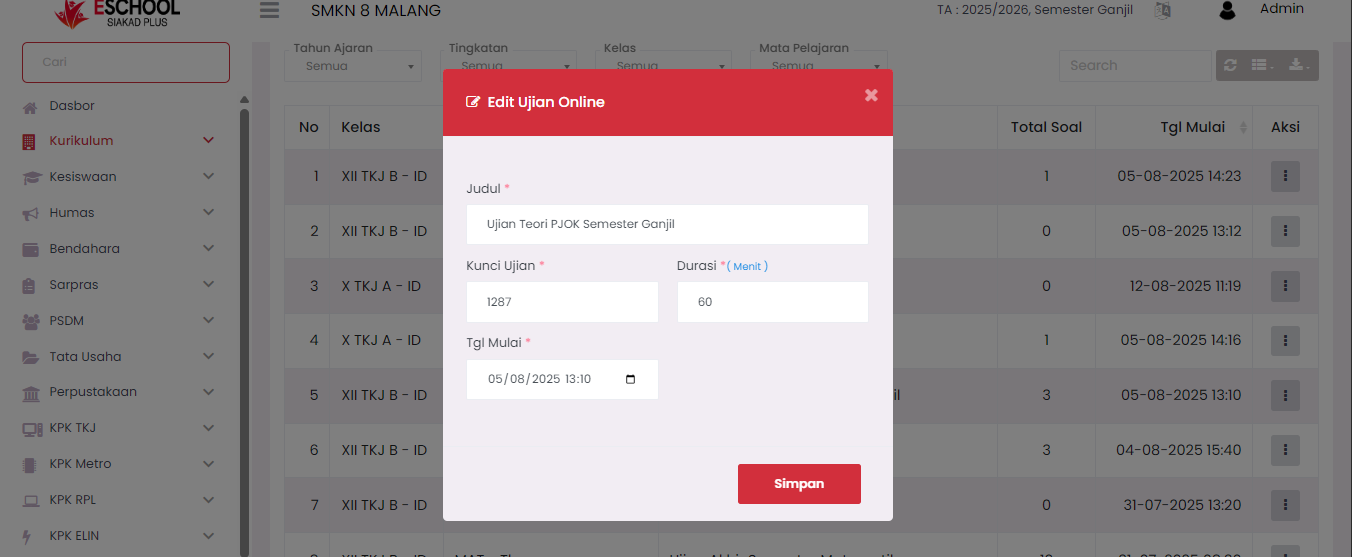
The Edit Online Exam feature is used to update basic information from exams that have been created, such as exam title, exam key, implementation duration, and exam implementation date. This page makes it easy for admin/teachers to make data changes if there are schedule revisions or other technical settings.
How to Access Edit Online Exam
- Go to Online Exams → Exams menu.
- In the exam list table, click the three-dot icon (⋮) in the Action column.
- Select the Edit option.
- The system will display the Edit Online Exam form modal as shown in the image.
Edit Online Exam Form
This form consists of several columns that must be filled/updated as needed:
Title
The name or title of the exam that will be displayed to students.
Exam Key
Secret code that students must enter to access the exam.
Duration
Length of exam implementation time (in minutes).
Start Date (Tgl Mulai)
Official time and date when the exam implementation begins.
Saving Steps
After all data changes are completed:
- Click the Save button.
- The system will update exam information based on the latest data entered.
Important Notes:
- Changes can only be made before the exam starts.
- The exam key can be adjusted to maintain exam security.
- Exam duration must be set precisely as it will affect student working time when the exam is running.
Functions of This Edit Feature:
- Update exam schedule information that changes.
- Replace exam key if re-securing is needed.
- Readjust exam duration according to teacher or school policy.
Need Further Assistance?
If you require additional support, please reach out to us via the eSchool Help Page.