
Grade Online Exam
The Grade Online Exam feature is used to check and provide assessments for essay answers from students who have taken online exams. The grading process is done manually by teachers by determining whether the answers given by students are Correct or Incorrect, and providing scores according to question weight.
Access Grade Online Exam Page
- Go to Online Exams → Exams menu.
- In the exam list table, click the three-dot icon (⋮) in the Action column.
- Select the Grade option.
- The system will display the Grade Online Exam page containing the list of questions from the exam.
General Information on Grading Page
Class Name
The class taking the exam.
Subject
The subject name of the exam.
Online Exam Title
The name of the exam to be graded.
Total Score
Total score weight of all questions in the exam.
View and Grade Student Answers
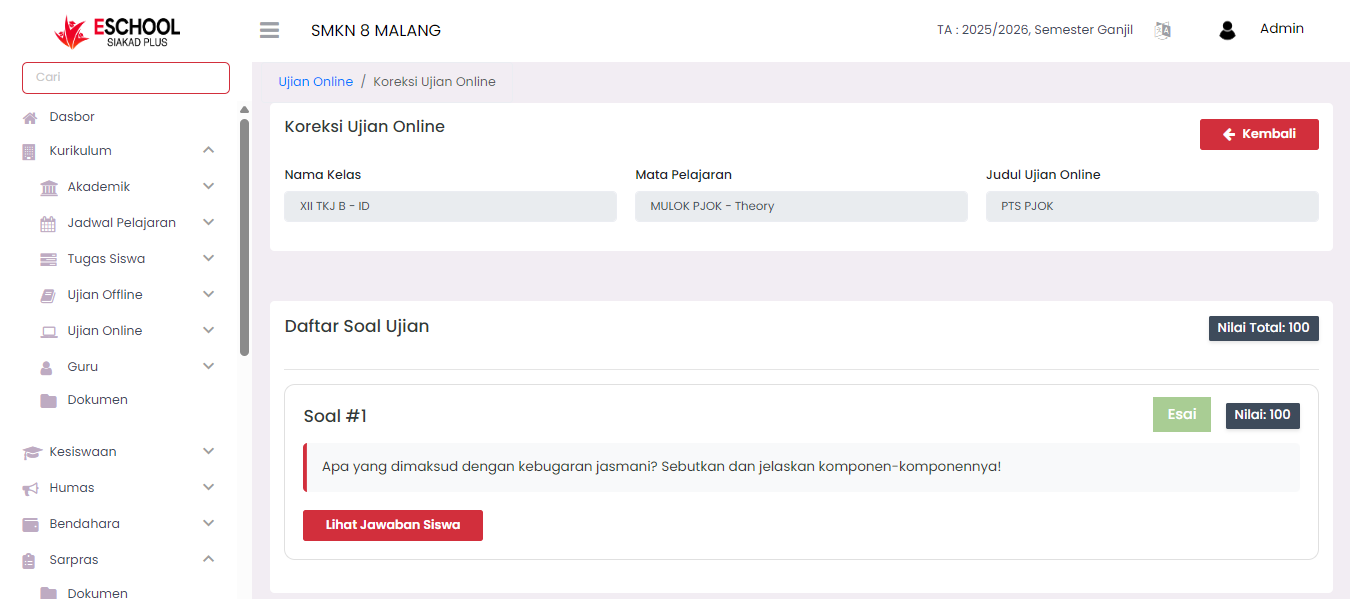
- Under Exam Question List, click the View Student Answers button on the question to be graded.
- The system will display the Grade Student Answers modal.
Grade Student Answers Form (Modal Pop-up)
In this grading modal, you will see:
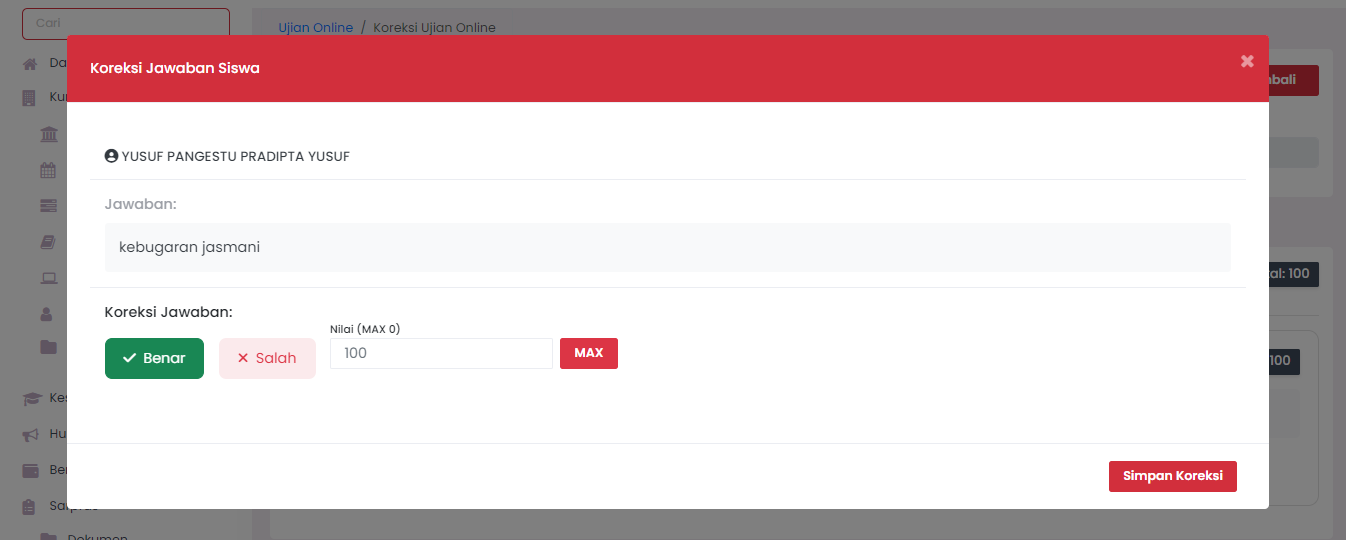
- Student Name → Name of the student being graded.
- Answer → Text answer filled in by the student.
- Grading Options:
- ✔ Correct → Mark student answer as correct.
- ✖ Incorrect → Mark student answer as incorrect.
- Score → Enter score (maximum according to question weight).
- There is also a MAX button to directly give full score to that answer.
Saving Grading Results
After selecting answer status and filling in the score, click the Save Grading button to save the assessment results.
Functions of This Grading:
- Provide manual assessment for essay-type questions that require subjective assessment.
- Determine whether student answers meet assessment criteria.
- Adjust answer scores flexibly (not automatic).
Brief Student Answer Grading Process:
- Students take the exam.
- Teachers access the Grade option in the Online Exams menu.
- Teachers select questions → click View Student Answers.
- Determine answer status (Correct/Incorrect) and give score.
- Save grading results.
Need Further Assistance?
If you require additional support, please reach out to us via the eSchool Help Page.