
Exam Status
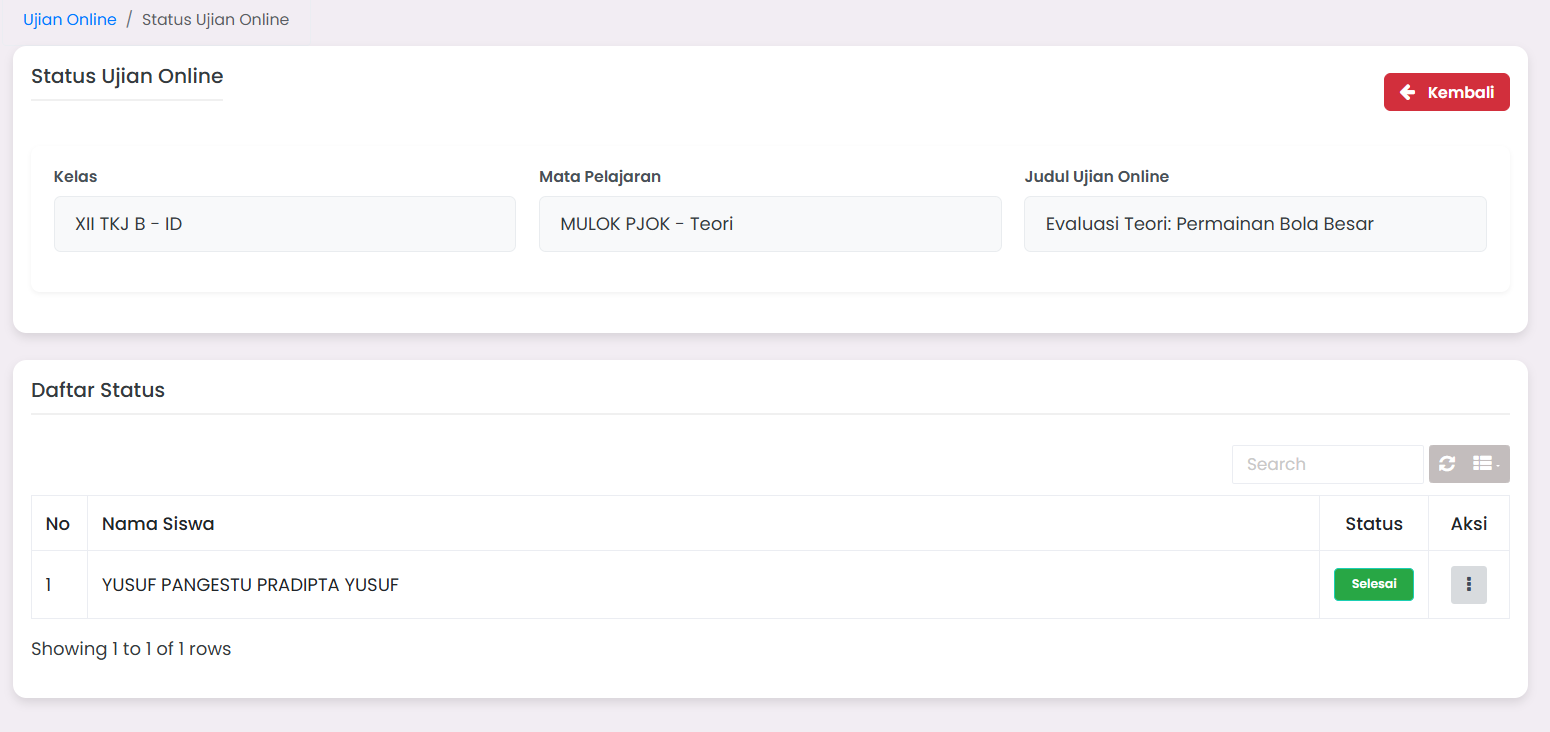
The Online Exam Status feature functions to monitor the exam completion status of students individually. Through this page, admin/teachers can see the list of students taking the exam, and monitor whether the student has completed the exam or not.
How to Access Online Exam Status Page
- Go to Online Exams → Exams menu.
- In the exam list table, click the three-dot icon (⋮) in the Action column.
- Select the Status option.
- The system will display the Online Exam Status page as shown in the image.
General Information on Status Page
The top of the page displays information related to the exam being monitored, including:
Class
The class taking the exam.
Subject
The subject name of the exam.
Online Exam Title
The name of the exam currently running.
Student Status List
At the bottom, there is a Status List table containing:
- Sequential Number
- Student Name
- Exam Status → Status will display "Completed" if the student has finished the exam, or "Not Completed" if not yet.
Action Option: Reset Exam
- Click the three-dot icon (⋮) in the Action column on the desired student row.
- Select the Reset option.
- This function will reset the exam status of that student, so the student can retake the exam from the beginning.
Reset Exam Functions
- Provide opportunities for students to retake exams if technical problems occur (e.g., connection lost).
- Allow teachers to reset exam status if re-evaluation is needed.
- Reset students will get access back to the exam with the same duration and questions.
Important Notes:
- The Reset option only applies to students already registered for that exam.
- Exam reset must be done before scores are published so final result data does not conflict.
- The system will automatically delete old answer results when the exam is retaken.
Brief Flow: Online Exam Status & Reset
- Students take exam → Teachers access Status option.
- Teachers view student status (Completed/Not Completed).
- If needed, teachers can click Reset to give exam retake opportunity.
Need Further Assistance?
If you require additional support, please reach out to us via the eSchool Help Page.