
Exam Questions
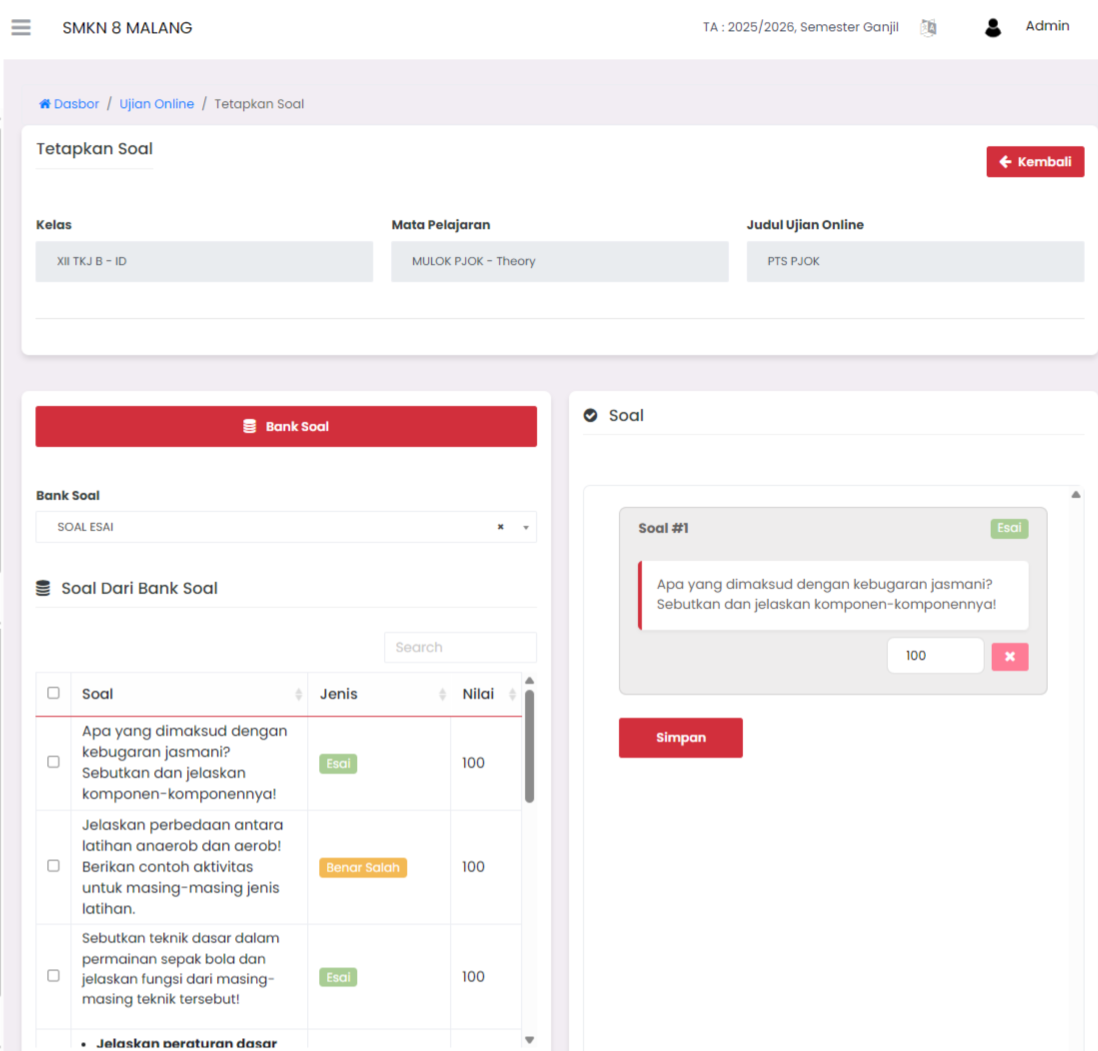
The Set Questions page functions to manage questions that will be used in online exams. Users can select questions from the available Question Bank, or create new questions manually as needed.
How to Access Set Questions Page
- Go to Online Exams → Exams menu.
- In the exam list table, click the three-dot icon (⋮) in the Action column.
- Select the Questions option.
- The system will display the Set Questions page as shown in the image above.
General Information Displayed
At the top of the page, information about the exam being configured will be displayed:
Class
The class taking the exam.
Subject
The subject name of the exam.
Online Exam Title
The name/title of the exam that has been created.
Left Section: Question Bank
- On the left side, there is a feature to select questions from the Question Bank registered in the system.
- You can select the Question Bank category from the dropdown.
- The question list will appear after selecting the available Question Bank.
- Questions from the Question Bank can be directly checked to be included in the exam.
Right Section: Selected Questions
On the right side of the screen, a list of questions that have been added to the exam will be displayed.
Each question will show:
- Question Number (question order).
- Question Type (e.g., Essay, Multiple Choice, etc.).
- Question Content.
- Maximum Score column (question score weight).
- Option to delete question (❌ icon).
Saving Questions
After all questions are selected or created:
- Click the Save button to save the list of questions that have been set for the exam.
Important Notes:
- Questions that have been set cannot be edited through this page after the exam starts.
- For adding or changing questions, users must do so before the exam starts.
- The Question Bank must be filled first if you want to use questions from the existing database.
Set Questions Page Functions:
- Determine questions to be used in the exam.
- Set the score weight for each question.
- Facilitate taking questions from the existing Question Bank.
Need Further Assistance?
If you require additional support, please reach out to us via the eSchool Help Page.