
Exam Results
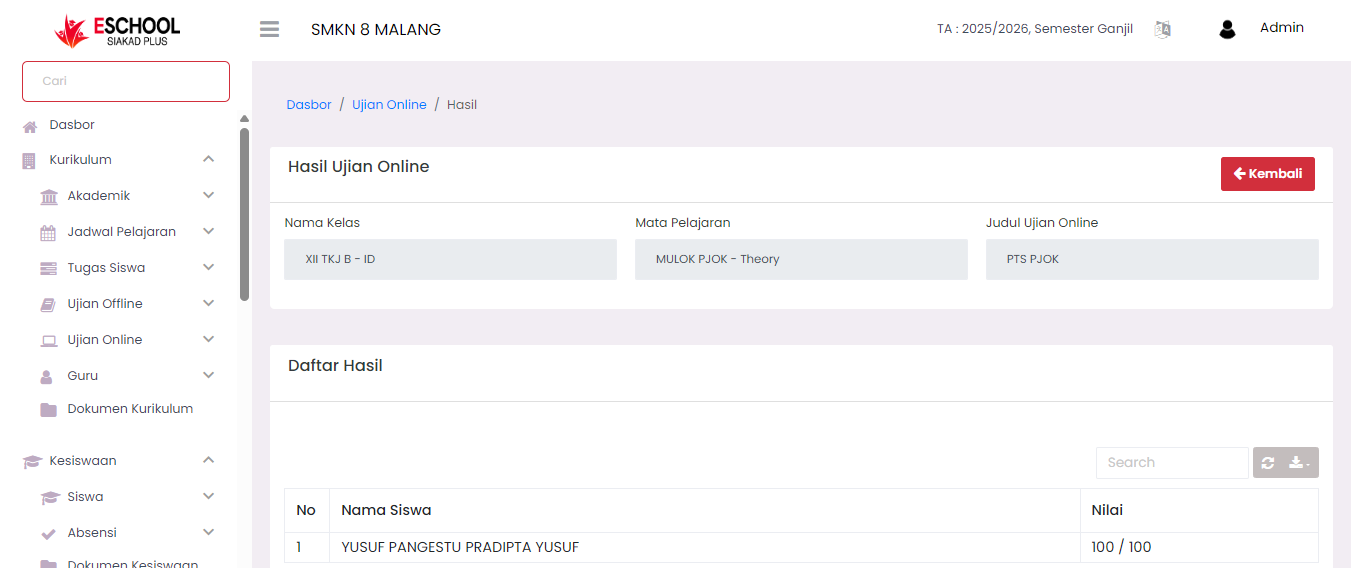
The Online Exam Results menu functions to display a list of scores from online exams that have been completed by students. This page is read-only (for viewing results only), so users cannot make changes to score data on this page.
🔍 How to Access Exam Results
To view student exam results, follow these steps:
- Go to the Online Exams → Exams menu.
- Search for the exam you want to view the results for in the Exam List table.
- Click the three-dot icon (⋮) in the Action column for that exam row.
- Select the Results option. The system will direct you to the student score details page.
Information Displayed
On this page, the system will display the following details:
| Data | Description |
|---|---|
| Class Name | The class taking the exam. |
| Subject | The subject of the exam taken. |
| Exam Title | The name or title of the exam that was previously created. |
Exam Results List
At the bottom, there is a Results List table that displays:
- Sequential Number
- Student Name
List of names of students who have taken the exam. - Score
Final score obtained by students from the exam (format: Score Obtained / Maximum Score).
The Search feature is also available to facilitate quick searching of student names, especially when the number of student data is quite large.
Important Notes:
- This page is only used to view and monitor exam results.
- There are no edit or score manipulation features on this page.
- To make changes or corrections to scores, this process must be done through features available in other exam management menus.
Functions of This Page:
- As monitoring of final online exam results that have been completed.
- Helps teachers/homeroom teachers to manually recap scores if needed.
- As a quick reference for curriculum operators to validate student exam result data.
Need Further Assistance?
If you require additional support, please reach out to us via the eSchool Help Page.